How to Send a Quick Campaign
Quick Campaigns are sales campaigns that employees use on a regular basis. Several predefined campaigns exist, such as a campaign to help dealership employees move used vehicle inventory. Additionally, employees can create new campaigns using the Sales Campaign screen, which can then be designated as quick campaigns using the Campaign Settings panel on the General Settings screen. For more information about creating sales campaigns, refer to How to Create and Send a Sales Campaign.
The following procedure can be used to start a quick campaign.
-
Access the Sales Campaign screen.

To access the Sales Campaign screen, click the
 (Sales Campaign) icon.
Quick campaigns display at the top of the Sales Campaign screen.
-
Click the START button corresponding to the quick campaign to send.
If the number of prospects included in the campaign is greater than the default campaign size, the Ready to Start Campaign window displays to confirm whether the campaign should be sent for the prospects with the highest prediction indicators up to the default campaign size.
Note - Prediction indicators are determined automatically in the XtreamService application.
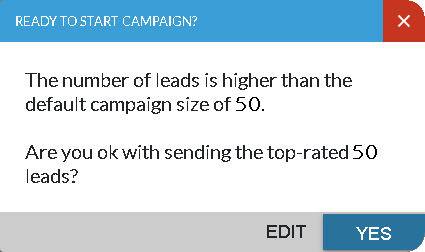
Proceed to step 3.
- or -
If the number of prospects included in the campaign is less than or equal to the default campaign size, the Ready to Start Campaign window displays, indicating the number of prospects included in the campaign and the methods by which the prospects can be contacted, such as through Email messages.
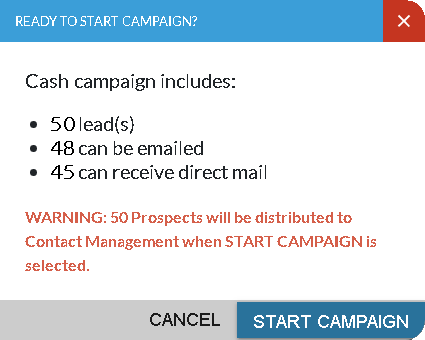
Proceed to step 4.
-
Click the EDIT button on the Ready to Start Campaign window.
The campaign criteria of the corresponding campaign displays automatically in the Campaign Criteria panel and the Results panel, where prospects can be selected to be included in the campaign.
- or -
Click the YES button to send the campaign using only the highest prediction indicators.
The number of prospects included on the campaign and the methods by which the prospects can be contacted, such as through Email messages, displays on the Ready to Start Campaign window.
-
Click the START CAMPAIGN button on the Ready to Start Campaign window.
The Ready to Start Campaign window closes, and the campaign is sent to the Customer application. In addition, an alert message displays, informing you that the campaign has been started.
Click here for a list of products that may be mentioned in this help file.